For iPhone and iPad

A personal toolkit for neurodivergent life.

Give your hands something to do. Save a thought before it slips away. Pick up a task right where you left it. Solastra keeps your sensory tools, writing, and day plans in one place.

Take the app tour
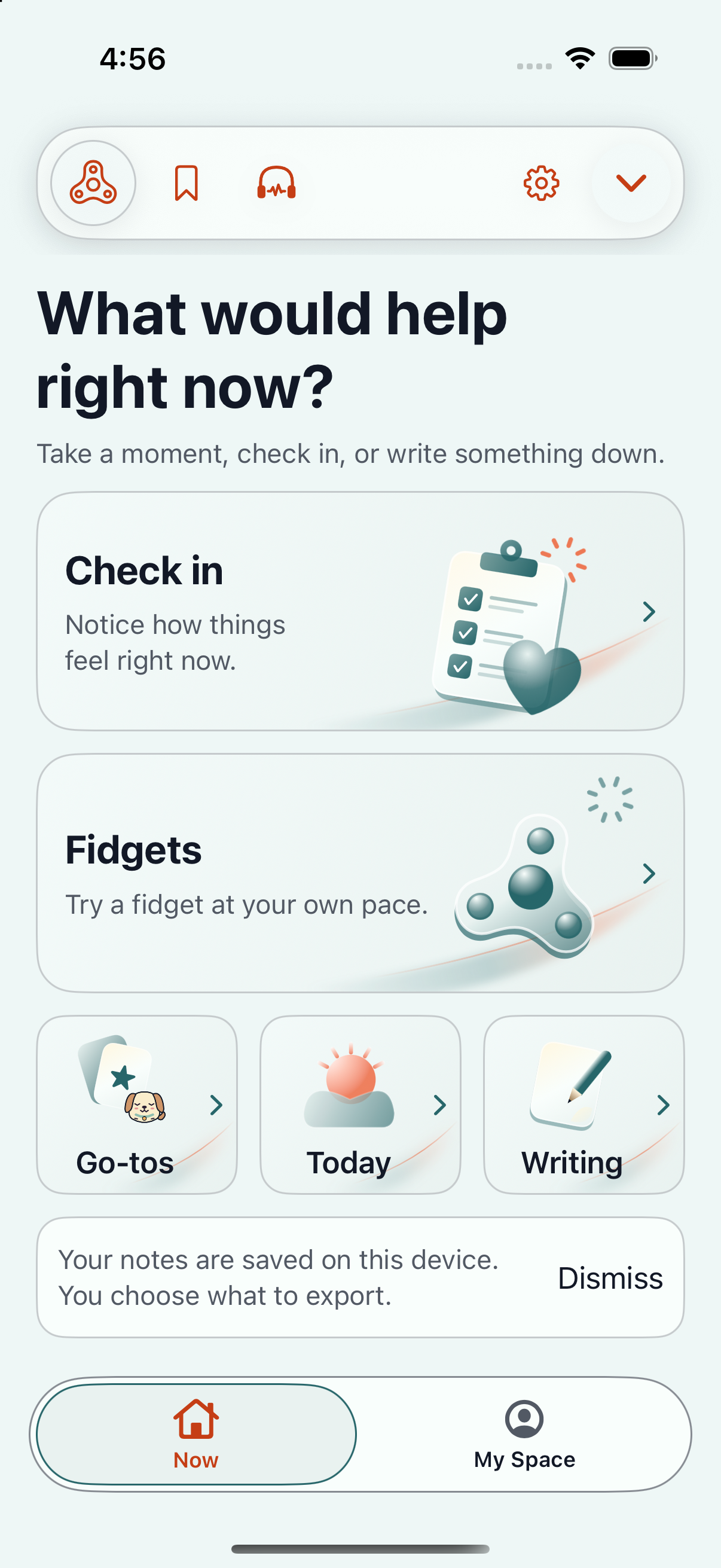
Now shows Check in, Fidgets, Go-tos, Today, and Writing.
Now
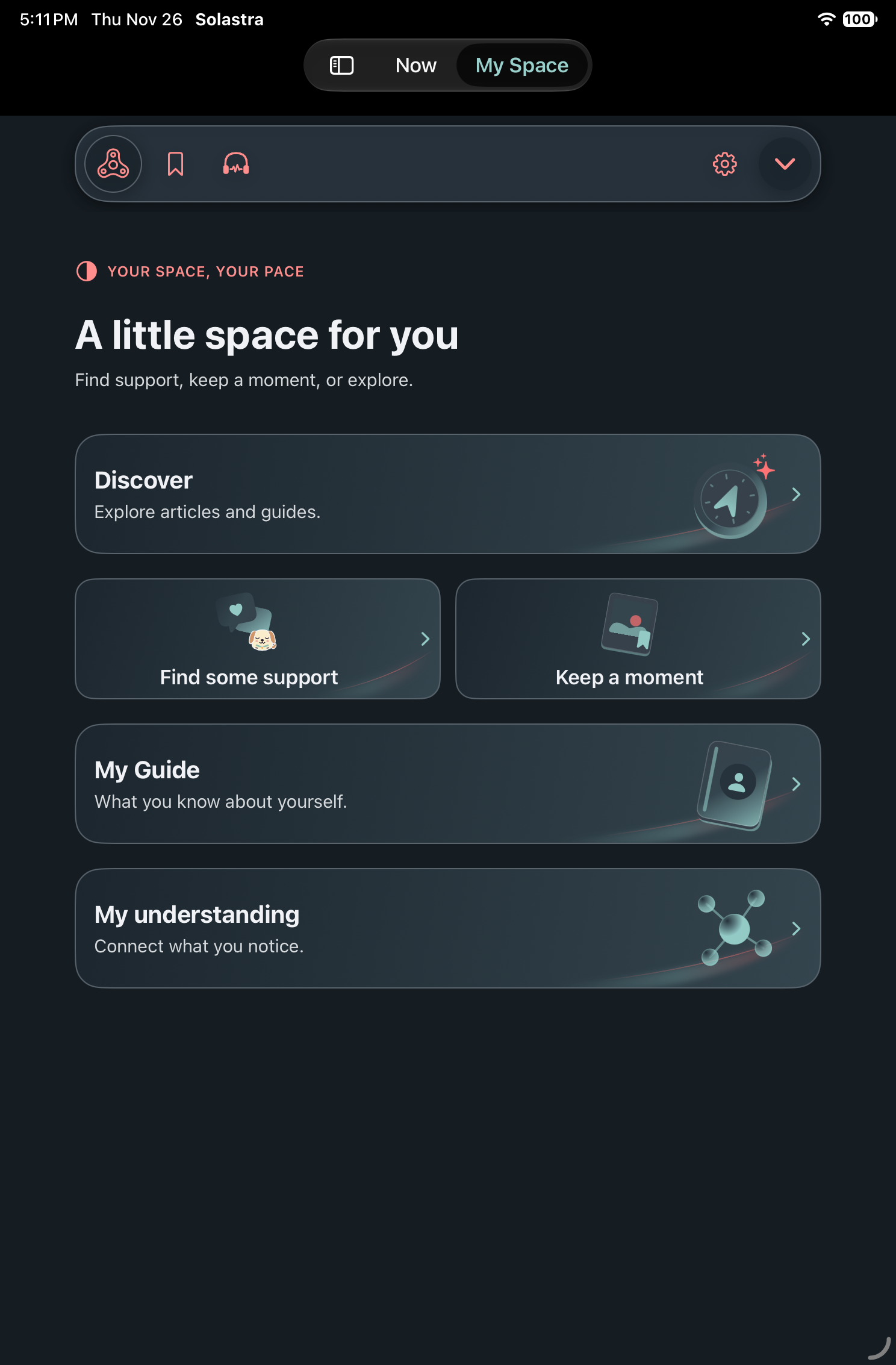
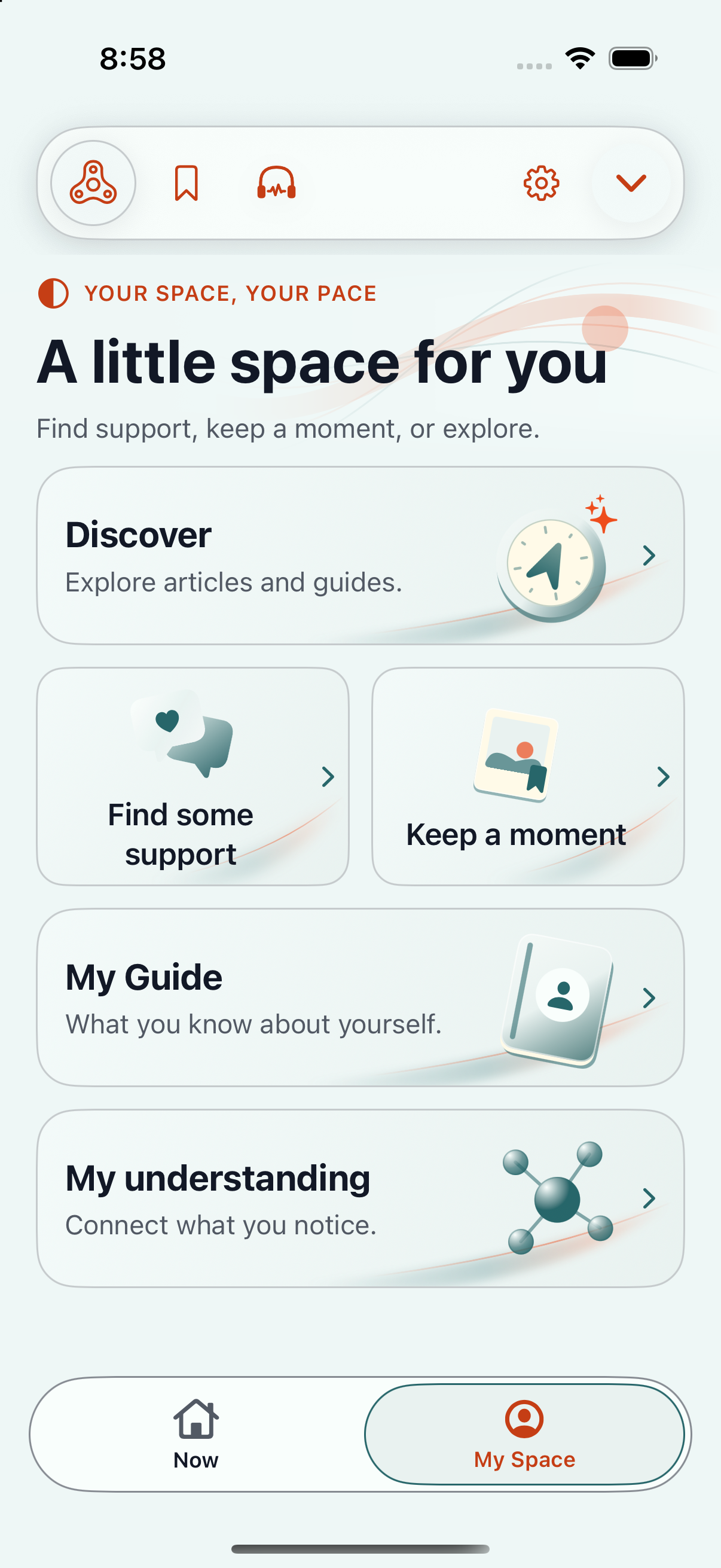
My Space opens Discover, support, moments, My Guide, and My understanding.
My Space

Inside Solastra

What Would Help Today?

Start in Now for a check-in or a next step. Open My Space for the things you’re learning about yourself. Explore either side of the app below.

Sensory Tools

When the room feels like a lot.

You might want less noise, something to do with your hands, or a moment to notice how you feel. Now gives you a place to start with any of those.

Check In
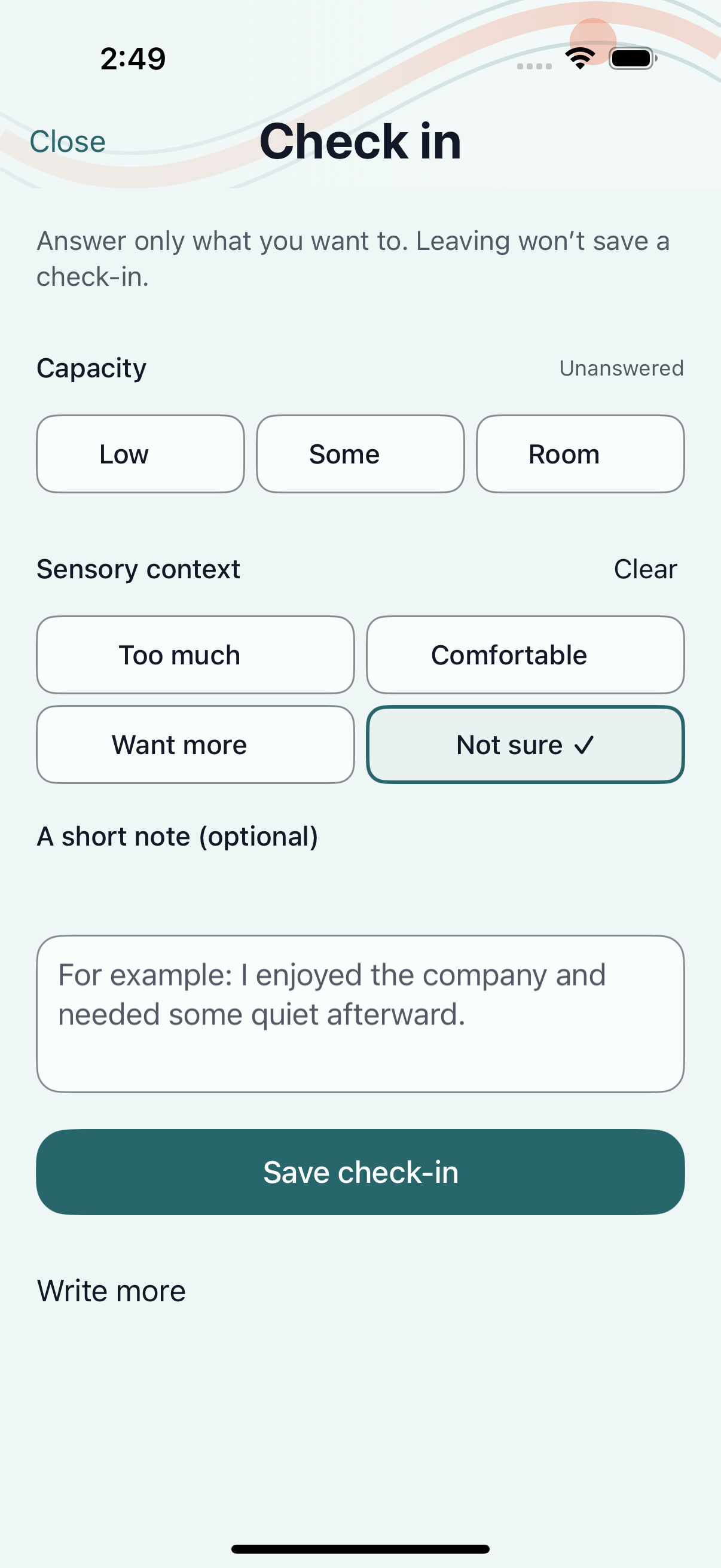
Record your capacity, your sensory surroundings, or a few words. Answer only the parts you want to keep.
Fidgets and Sounds
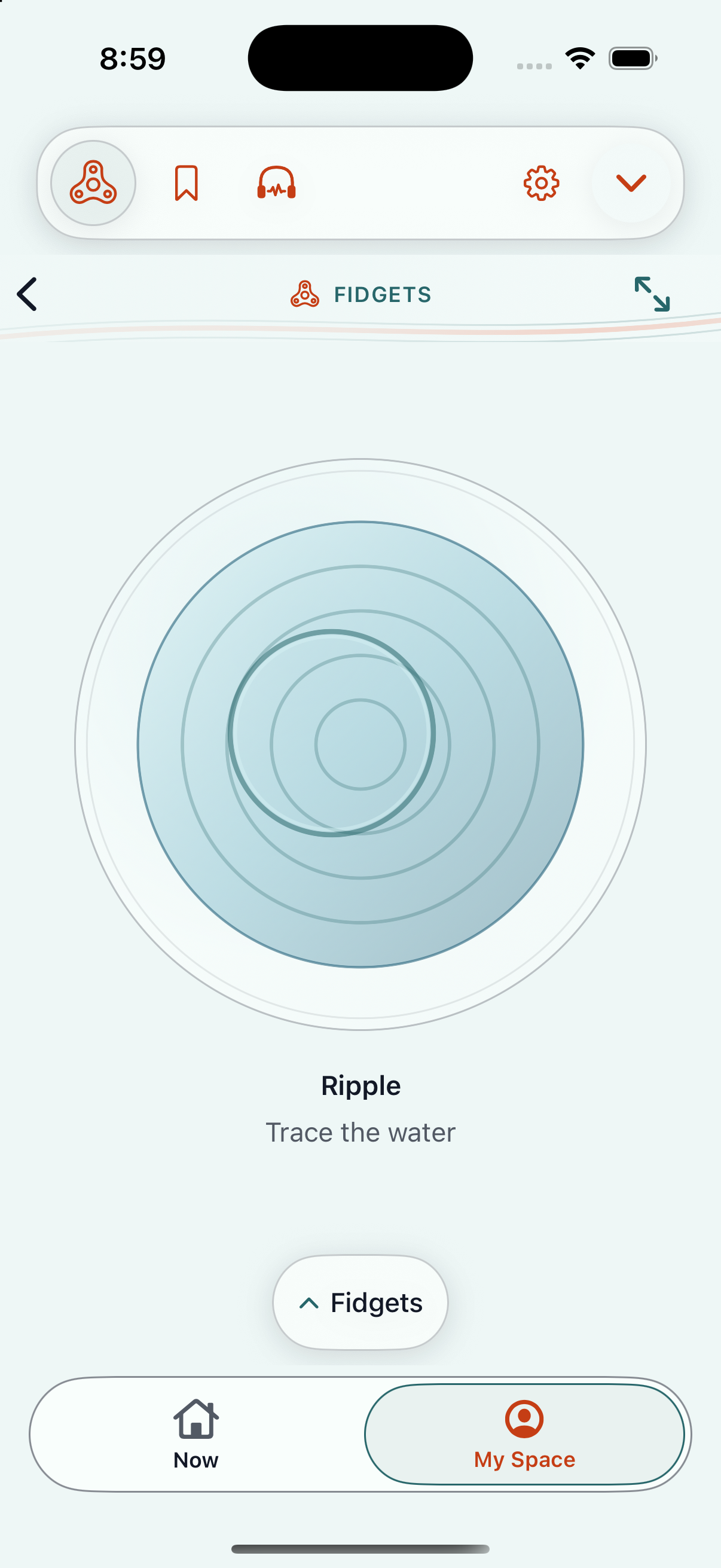
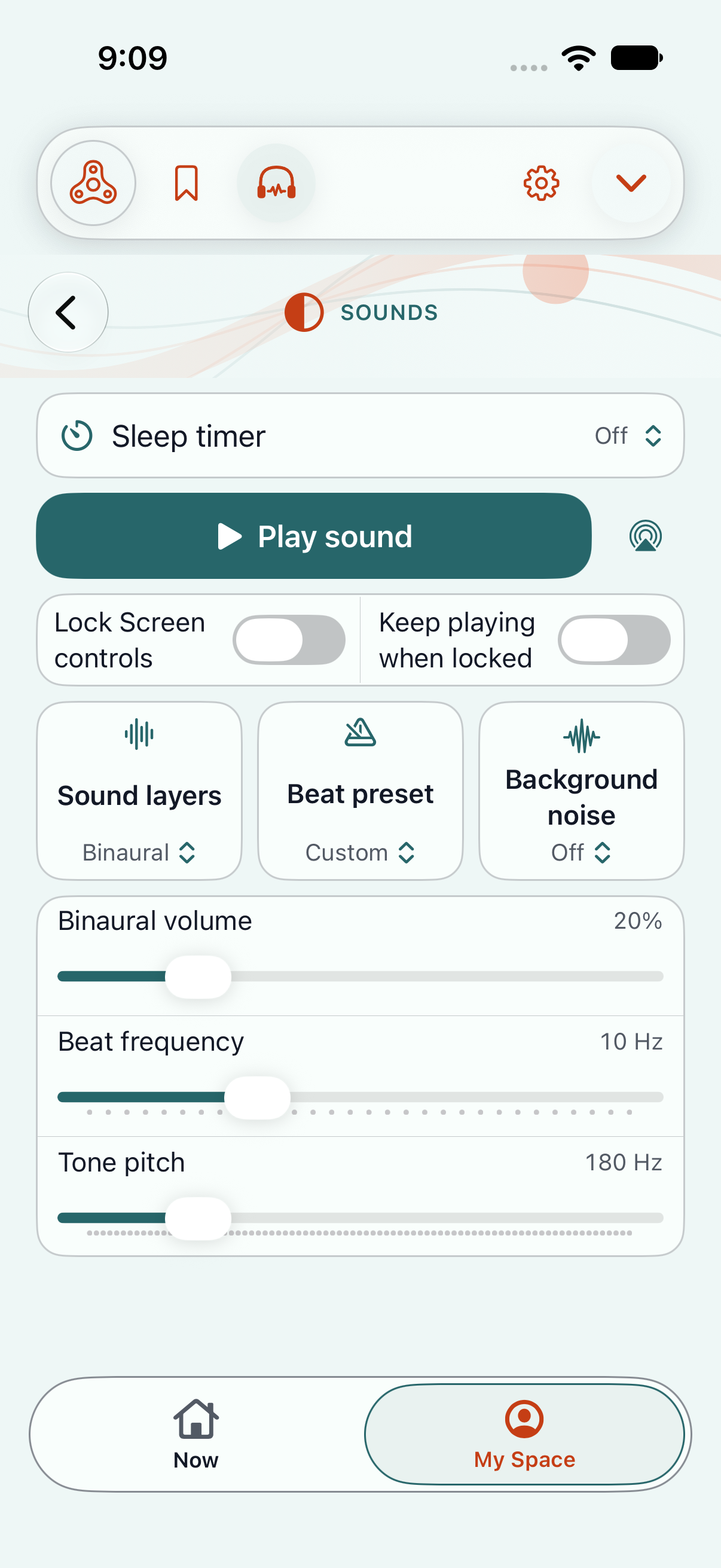
Trace water in Ripple, turn the rings in Orbit, or rub a worry stone. Open Sounds to choose a soundscape and adjust the mix. Playback starts when you choose it.
Grounding and Visual Focus
Follow one grounding prompt or rest your attention on a still point. Less input softens the fidget experience.
See a check-in See Sounds
Ripple fidget showing the blue water rings and touch controls.
Ripple · Fidgets

Writing & Moments

Some thoughts are worth keeping. Some just need somewhere to go.

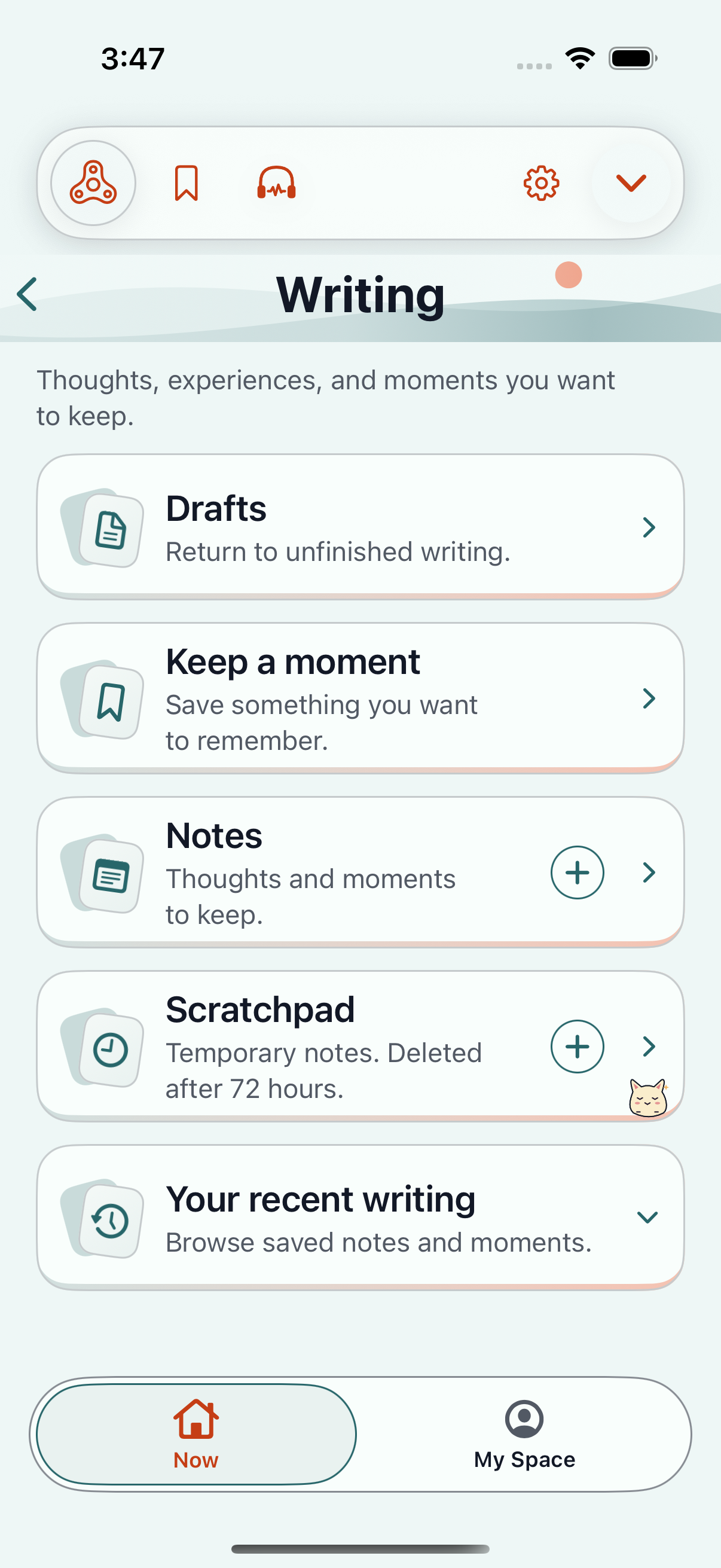
Write about something you enjoyed, leave a half-finished thought in Drafts, or put a passing worry in Scratchpad. You decide which kind of space the thought needs.

Notes and Moments
Mark something you want to remember so you can find it among your moments later. A photo or short recording can be part of a moment, too.
Scratchpad
Temporary notes expire after 72 hours. If you want to keep one, move it to Notes before it expires.
Go-Tos
Keep the name of the drink you order, a favorite place, or the details that make something worth doing again. Choose specific favorites when you want to share them.
Writing directory with Drafts, Keep a moment, Notes and Scratchpad.
Writing · Notes and Scratchpad

Planning & Focus

Give yourself a way back in.

You’ve picked the two photos you want to print when the phone rings. Leave a Breadcrumb that says “Photos picked. Next, choose the frame.” When you come back, you know where to start.

Today
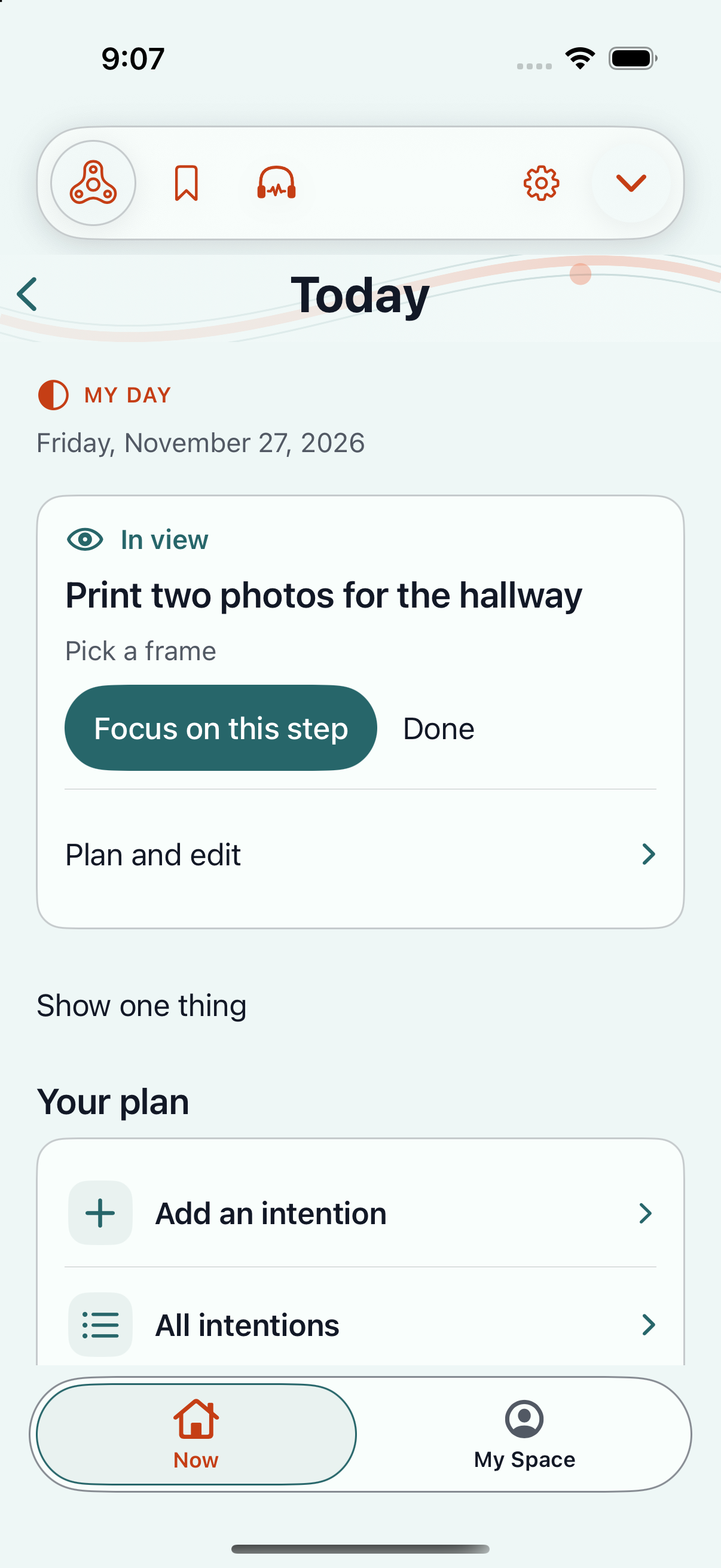
Keep one intention in view. Add a time or some breathing room around a transition, or leave the day open.
Unstuck and Focus
Break an intention into a smaller first action. Work on just that step, with or without a timer.
Routines and Breadcrumbs
Follow a familiar sequence one step at a time. When you pause, leave yourself a few words about where to pick it up.
Today shows Print two photos for the hallway with Pick a frame as the next step.
Today · My Day

Communication & Support

Have the words ready when speaking takes effort.

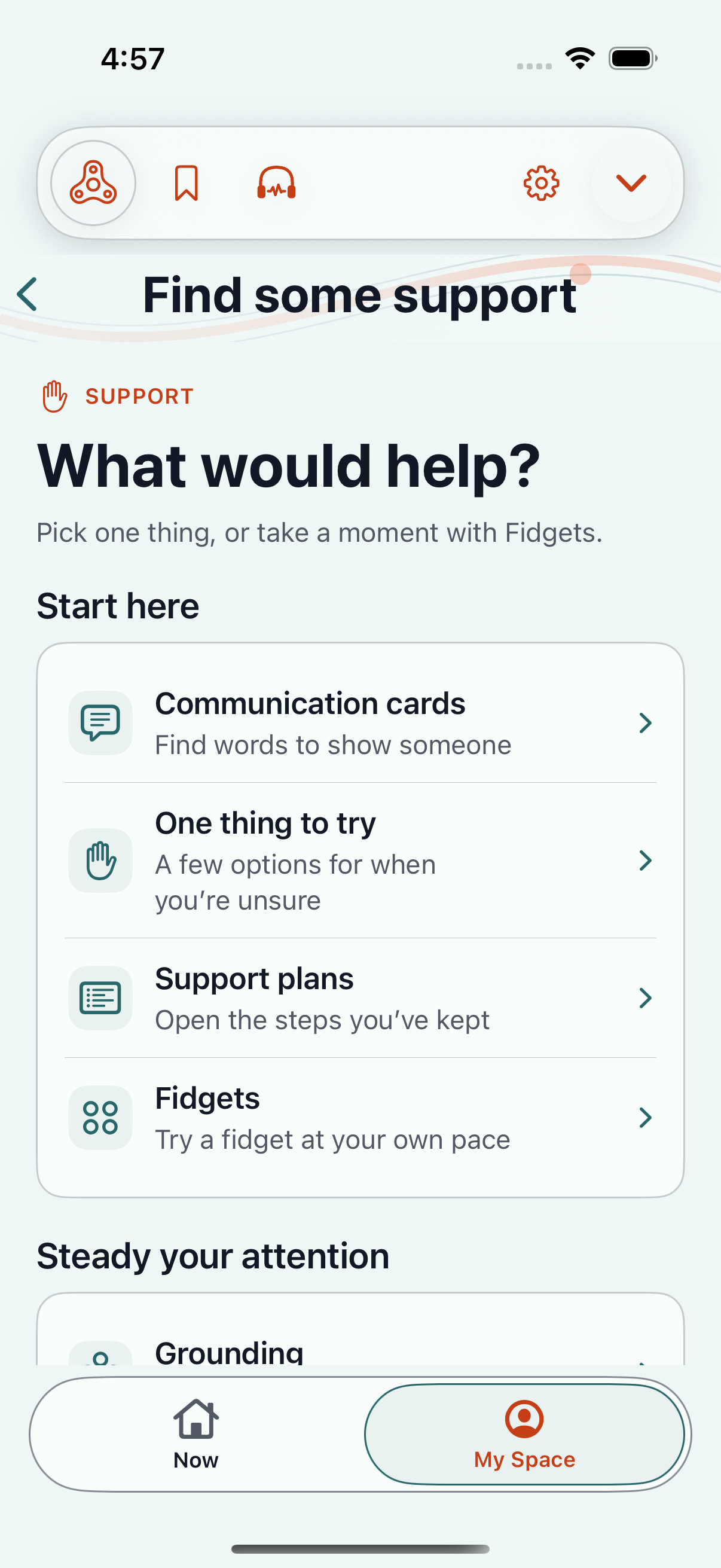
“Please give me one instruction at a time.” A communication card can say that for you. Pick a starter or write your own, preview the wording, then show just that message in large type.

Connection counts, too.
There are cards for enjoying someone’s company, asking for time to respond, or saying you would like to do this again.
Support Plans
Put familiar tools and cards in the order you want to use them. Open the plan when you need it and follow one step at a time.
Personal Comforts
Keep your own reminders of a texture, place, or familiar thing that helps. A sensory toolkit gives you other options to explore.
See a full-screen card
Support screen with communication cards, support plans, fidgets and grounding.
Find Some Support · My Space

Self-Understanding

Build a guide that sounds like you.

“I remember what I hear.” “I like company while I work.” “Give me a little time to answer.” My Guide gives strengths, interests, and preferences the same space as support needs.

My Guide
Start with one thing you do well, enjoy, value, or want others to understand. Use a prompt or start in your own words.
My Understanding
Link observations you think belong together. Look at the entries behind a pattern, then decide what you want to say about it.
Saved
Find a guide card, a strategy you tried, a favorite place, or something you bookmarked. Search your writing and saved items by words, dates, or labels.
See My Space on iPad
My Space showing My Guide, My understanding, Discover, and Keep a moment.
My Space · Your Personal Guide

Reading & Discovery

Follow the question you actually have.

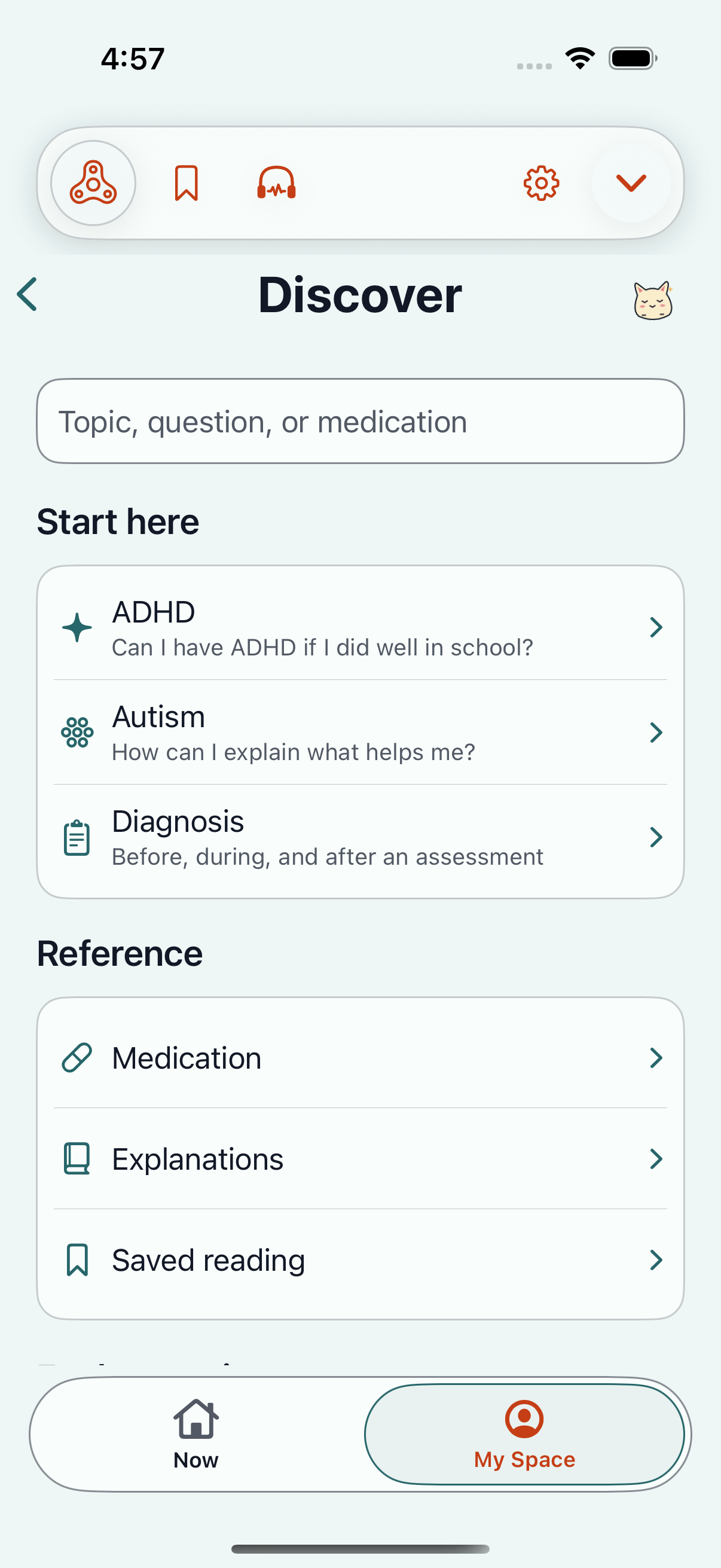
Maybe you did well in school and still have questions about ADHD. Maybe you want language for sensory overload or want to know what an assessment involves. Discover lets you start with that question.

Topic Guides
Browse ADHD, autism, sensory processing, executive function, and more. Open a guide’s sources when you want to read further.
Medication Reference
Look up selected U.S. medications and read how their uses are described. The library separates approved uses, off-label uses, and areas of research.
Saved Reading
Keep a useful explanation or resource for later. Use a topic as a starting point for a note about your own experience.
Discover on iPhone with search, ADHD, Autism, Diagnosis, Medication and Saved reading.
Discover · Reading and Guides

The tour includes Free and Plus features. Compare the plans.

From Writing to My Space

A note can be a starting point.

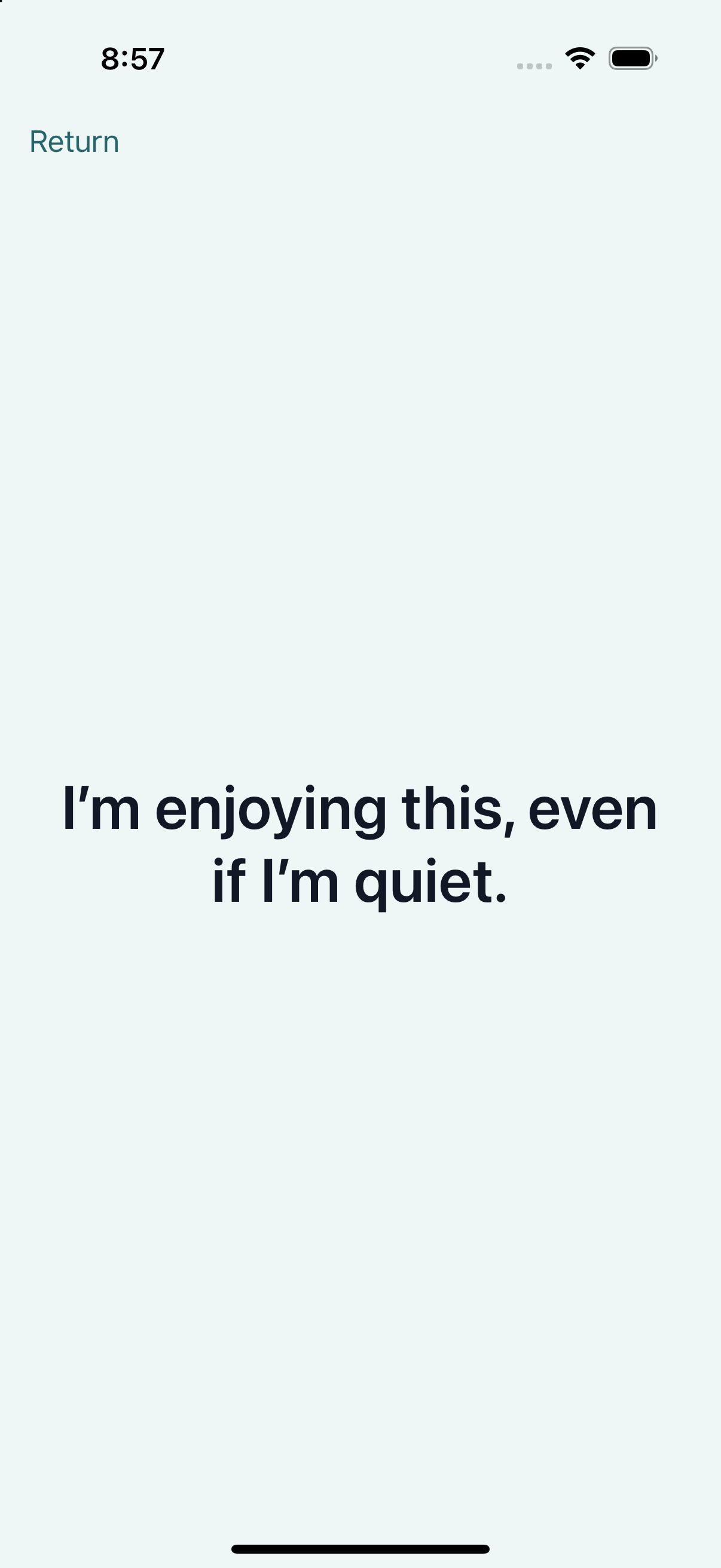
Say you’ve just put your guitar down. You save a few lines about the song you learned. Later, you can select a sentence from that note and use it to start a guide entry, save a favorite, or make an intention for tomorrow.

The original stays in Notes. You choose the passage and edit what it becomes.

Example Note

“I learned the chorus by ear. The acoustic recording is my favorite. Next time I want to try the harmony.”

Personalization

Decide how much shows up.

Choose a color palette, adjust the spacing, or switch to brief text when a page feels busy. You can soften the artwork, reduce motion, and pin the tools you reach for most.

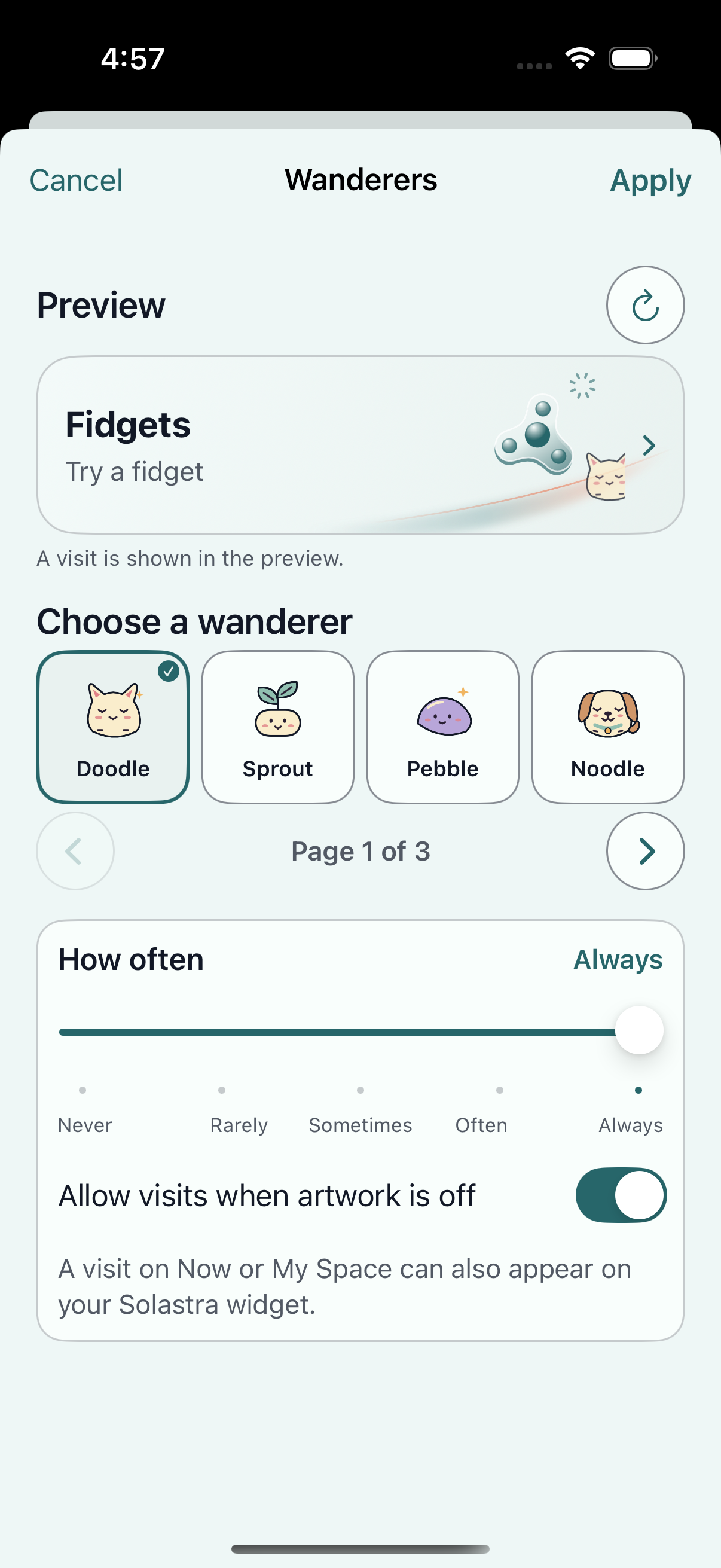
If you like a little company, invite a Wanderer. Doodle is a sleepy cat. Sprout is a garden companion. Pick a character, preview a visit, and choose how often they appear, including Never.

Wanderer picker with Doodle, Sprout, Pebble and Noodle.
See the visit settings

Solastra Free and Plus

Both plans include check-ins, communication cards, daily planning, Focus, and Breadcrumbs. You also get App Lock, accessibility settings, and the tools to back up or export your records.

Free

$0. Keep using Solastra without a subscription.

  • Save text notes and Moments, use Scratchpad, and keep up to 3 unfinished writing drafts.
  • Keep 3 Go-tos, 3 My Guide cards, and 1 support plan.
  • Use 4 fidgets and 3 soundscapes. Read 3 full Discover guides on executive function, sensory processing, and emotional regulation.
  • Choose built-in colors and invite Doodle or Sprout as often as you like.

Plus

Everything in Free, with more ways to keep and use what helps.

  • Add photos and recordings to Moments and keep up to 20 unfinished writing drafts.
  • Keep more Go-tos, guide cards, and support plans. Create reusable routines and personal strategies, and explore patterns in your notes.
  • Explore all 11 fidgets, 8 soundscapes, and 18 Discover guides.
  • Choose from all 12 Wanderers and the full artwork library. Set custom colors and pin your tools to the shortcut bar.

Three Ways to Get Plus

Each option includes the same features. Planned U.S. launch prices are shown in USD.

Lifetime
$39.99 once
Launch price for the first 30 days, then $49.99.
Annual
$24.99 per year
Billed annually. Renews until canceled.
Monthly
$4.99 per month
Billed monthly. Renews until canceled.

14-Day Plus Trial

The planned trial gives eligible users all Plus features for 14 days. You choose whether to start it. It ends automatically without a charge. After a trial or subscription ends, you can still open, edit, and export the personal records you saved.

Apple will show your local price, trial eligibility, and purchase terms in the app before you confirm.
On Your Device

Keep your tools close.

Your personal library lives on your device. You choose what to show someone, what to export, and which system features to use.

Privacy in Solastra
Widgets, Siri, and Focus

A widget can put a small fidget on your Home Screen. Shortcuts can start or pause Focus or play a soundscape. If you want Siri to open a personal support plan or card, you choose which one to make available.

Writing and Voice

Use voice capture when typing is hard and on-device speech recognition is available. On supported devices with Apple Intelligence ready, you can also ask for help shortening a communication draft or finding possible next steps. Review the suggestion before using it.

App Lock, Search, and Backups

Protect your library with App Lock, find saved items through Solastra’s search, and choose what to make available to Spotlight. In Your data, you can export selected text or save a backup to a destination you choose.

App Screen

Open original PNG